Display Mode
In the initial mode, you can move your mouse to the upper right corner. A menu button appears. Click it with the mouse to access the menu. In the middle of the right side are three perspective to choose from.
- Animated MMD camera.
- Free camera. In this mode, you can rotate and translate through the scene by clicking into the scene and holding the left or right mouse button.
- Start the VR or AR mode if supported by your browser.
VR / AR Mode
You can use your Smartphone or 3D glasses to enter the scenes. If your device supports it, there will also be a 3d glasses icon in the lower right corner.
Player Control
The player is located on the bottom of the screen.
Time and Frame View
Switch between the time and frame view by clicking on the time or frame text.
Meta Quest Controller
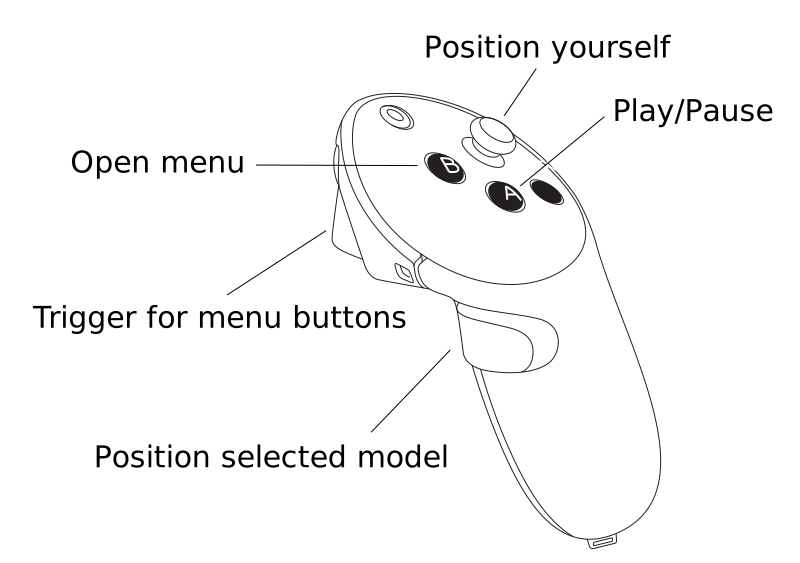
| Button | Finger | Description |
|---|---|---|
| A | Thumb | Play/Pause animation. |
| B | Thumb | Open and close the menu. |
| Select | Index | Direct the controller pointer to the menu item and hit the controller trigger at the index finger to select it. |
| Grab | Middle | Hold the grab button and move the controller to position the currently selected model. |
| Joystick | Position yourself |
|---|---|
| Up | Hold it while pointing to a position you want to teleport to. |
| Down | Move one step back. |
| Left | Turn left. |
| Right | Turn right. |